

Why Google Analytics Setup Is the First Step to Understanding Your Website
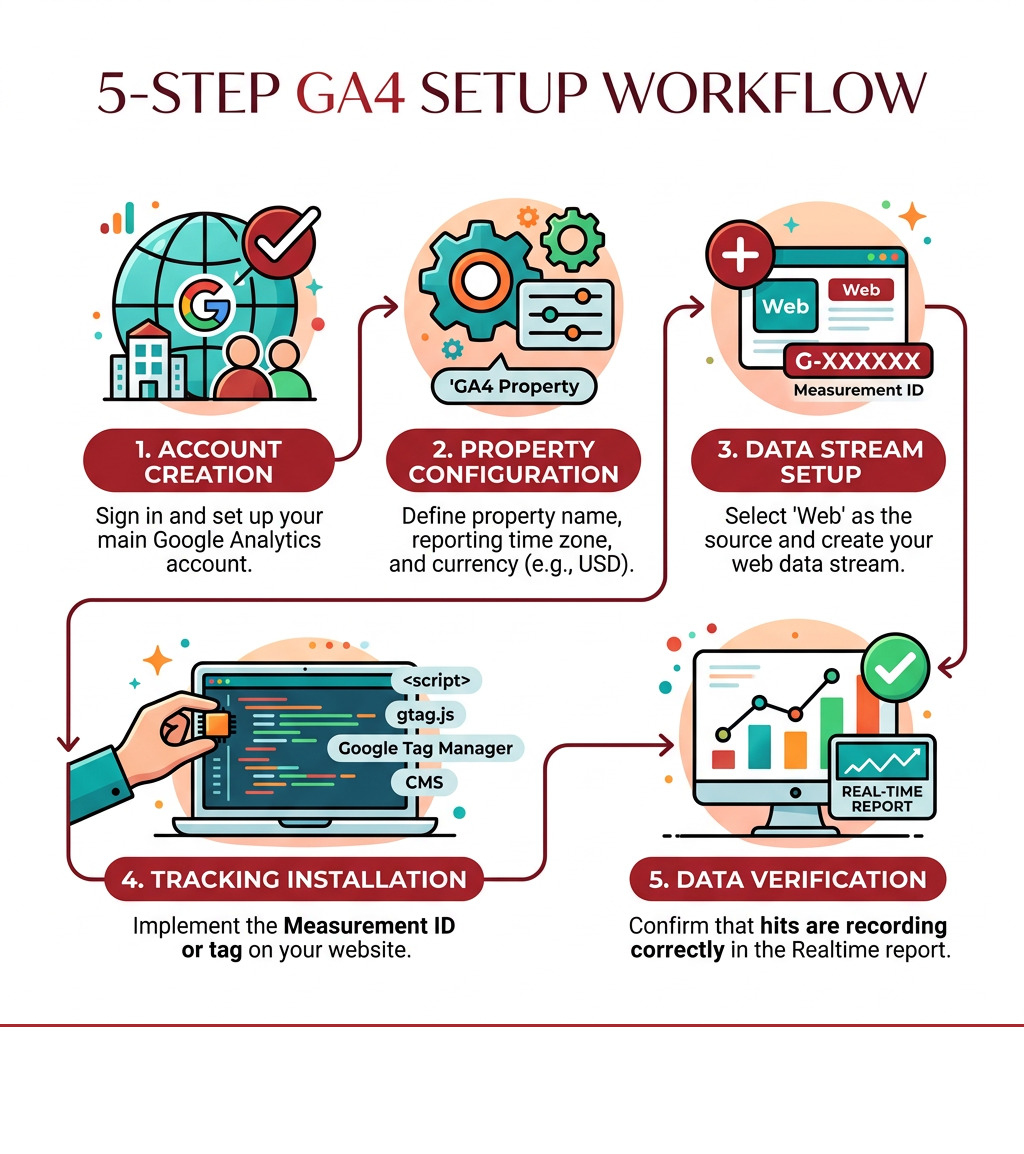
Google Analytics setup is the process of creating a GA4 account, adding a tracking code to your website, and configuring key settings so you can measure traffic, user behavior, and business results.
Here’s the quick version of how to set it up:
- Create a Google Analytics account at analytics.google.com
- Create a GA4 property with your time zone, currency, and industry
- Add a web data stream and copy your Measurement ID (G-XXXXXXX)
- Install your tracking code via gtag.js, Google Tag Manager, or a CMS plugin
- Verify data is flowing using the Realtime report
- Configure key settings — data retention, key events, and internal traffic filters
That’s the core of it. But most businesses miss critical settings that cause permanent data gaps.
GA4 now powers 14.8 million websites and holds 65% of the web analytics market — yet 81% of setups have misconfigured events or tracking gaps. A default installation isn’t enough. The settings you skip on day one can’t be recovered later.
This guide walks you through every step — done right, from the start.
I’m Jeff Pratt, owner of JPG Designs, a Rhode Island digital agency where I’ve spent over 15 years helping businesses get their Google Analytics setup correct so they can make real decisions from real data. I’ll show you exactly what to do — and what not to miss.
Google Analytics setup definitions:
Step-by-Step Google Analytics Setup for Your Business
Getting your Google Analytics setup right starts with understanding how the platform is structured. Think of your Account as the folder for your business, and the Property as the specific website or app you want to track.
To sign up for an Analytics account, you simply need a standard Google Account. Once you are in, you can add up to 2,000 properties to a single account. For most of our clients in Rhode Island and Massachusetts, one account with one property for their main website is the standard approach.
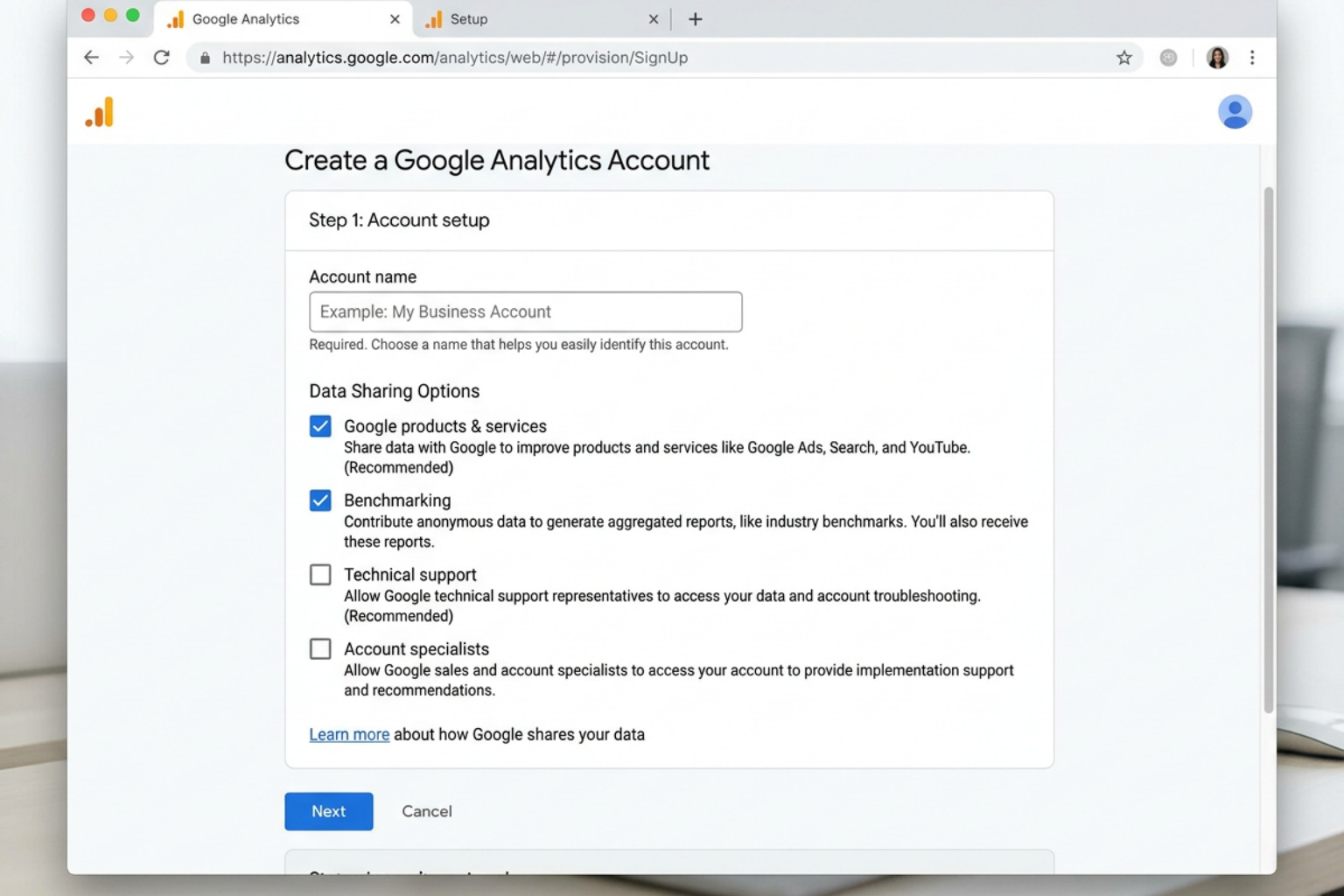
During the initial creation, you’ll be asked about data-sharing settings. These allow Google to use your data to improve products or provide technical support. While mostly optional, we recommend reviewing these to ensure they align with your company’s privacy policies.
Why Transition to Google Analytics 4 (GA4)?
If you’ve used the “old” Universal Analytics (UA), you might notice things look a bit different. UA was based on “sessions” and “pageviews,” but GA4 uses an “event-based” model. In GA4, every interaction—a click, a scroll, a video play—is an event.
This is a massive shift. Because the models are so different, your numbers in GA4 will never perfectly match your old UA data. GA4 uses different session timeout logic and user counting methods. It’s also built for a privacy-first world, using behavioral modeling to fill in gaps when users decline cookies.
While the standard version of GA4 is free (and more than enough for small to mid-sized businesses), there is a paid version called GA360. However, unless you are a massive enterprise processing billions of events, the free version is your best friend.
Creating Your Account and Property
When you create your property, the details matter. We often see businesses rush through this and end up with skewed data because their time zone or currency is wrong.
- Property Naming: Give it a clear name like “JPG Designs – Main Site.”
- Reporting Time Zone: This is crucial. If you are based in Providence or Boston, set this to Eastern Time. If you change this later, it only affects data going forward and can cause weird “spikes” or “flat spots” in your reports for 24 hours.
- Currency: Set this to USD (or your local currency) so your e-commerce or lead value data makes sense.
- Industry & Business Objectives: Google uses these to tailor your default reports. If you select “Generate Leads,” your dashboard will prioritize lead-related metrics.
| Feature | Universal Analytics (Legacy) | Google Analytics 4 (Modern) |
|---|---|---|
| Data Model | Session-based | Event-based |
| Tracking | Pageviews & Hits | Events & Parameters |
| Privacy | Limited | Privacy-centric (Consent Mode) |
| Cross-device | Limited | Native web & app tracking |
| BigQuery | Paid only | Free tier available |
Configuring Data Streams and Your Google Analytics Setup
A “Data Stream” is the flow of information from your website or app to Analytics. For a standard website, you’ll set up a Web Data Stream.
- Enter your website URL (e.g., jpgdesigns.com).
- Give the stream a name.
- Ensure Enhanced Measurement is toggled on (more on this later).
Once created, you’ll see your Measurement ID (formatted as G-XXXXXXX). This ID is the “address” your website uses to send data to the right place. To dive deeper into why this structure matters, check out our guide on everything-you-need-to-know-about-google-analytics.
Optimizing and Maintaining Your GA4 Configuration
Once the “plumbing” is installed, you need to make sure the water is flowing correctly. This is where we move from basic Google Analytics setup to optimization.
The Realtime report is your first stop. Open your website in a separate tab, click around, and see if your activity shows up in the Realtime dashboard within seconds. If it does, congratulations—you’re live! If not, we need to look at your installation method.
For a smooth transition, we often walk our clients through our google-onboarding process to ensure no data is left behind.
Choosing the Best Installation Method for Your Google Analytics Setup
There are three main ways to get that tracking code onto your site. The “best” one depends on your technical comfort level.
- Direct Code (gtag.js): You copy a snippet of JavaScript and paste it into the
section of every page. This is great for custom-coded sites. - Google Tag Manager (GTM): This is our recommended method. You install the GTM container once, and then you can manage GA4, Facebook Pixels, and other tags without ever touching your website code again.
- CMS Plugins: If you use WordPress, plugins like Site Kit by Google make it a one-click process. Shopify, Wix, and Squarespace also have built-in fields where you simply paste your Measurement ID.
| Method | Ease of Use | Flexibility | Best For |
|---|---|---|---|
| gtag.js | Moderate | Low | Simple websites |
| Tag Manager | Advanced | High | Growing businesses |
| CMS Plugin | Very Easy | Low | WordPress/Shopify users |
For high-traffic sites or those worried about ad-blockers, server-side tagging is an advanced option. It’s more complex but offers better data accuracy and faster site speeds.
Essential Post-Setup Configurations and Key Events
This is the part 81% of people miss. Do not skip these two steps!
1. Change Data Retention to 14 Months By default, GA4 only keeps your user-level data for 2 months. This means you can’t run year-over-year reports in the “Explore” section. Go to Admin > Data Settings > Data Retention and change it to 14 months immediately. Google won’t backfill this, so if you wait six months to change it, that early data is gone forever.
2. Filter Internal Traffic You don’t want your own visits (or your team’s visits) messing up your data. You can define your office IP address as “internal traffic” in the Data Stream settings so GA4 ignores it.
3. Enable Enhanced Measurement This is a “set it and forget it” feature that automatically tracks:
- Scrolls (when users reach 90% of a page)
- Outbound clicks
- Site search results
- Video engagement (YouTube)
- File downloads
4. Define Key Events (Formerly Conversions) Google has renamed “Conversions” to Key Events. These are the actions that actually make you money—like a form submission or a purchase. You can mark any event as a Key Event by simply toggling the “Mark as key event” switch in the Events report. GA4 allows up to 30 key events per property.
Privacy Compliance and Product Integrations
Privacy isn’t just a buzzword; it’s a legal requirement. If you have visitors from the EU, UK, or even certain US states, Consent Mode v2 is mandatory. This ensures your Google tags respect user consent choices regarding cookies. We recommend using a certified Consent Management Platform (CMP) like Cookiebot or OneTrust to handle this.
Finally, link your other Google tools to get the full picture:
- Google Ads: See your ROI directly in Analytics.
- Search Console: See what organic keywords people are using to find you.
- BigQuery: This is a big one. GA4 offers a free export to BigQuery (up to 1 million events per day). Even if you don’t know how to use it yet, enable the export today. It creates a permanent, raw backup of your data that you can use for advanced AI analysis later.
Maintaining your Google Analytics setup isn’t a one-time job. We suggest a quarterly check-up to review your referral exclusions (to stop “spam” traffic) and ensure your key events are still tracking correctly.
If this feels overwhelming, don’t worry. Our digital-marketing-services are designed to take the technical heavy lifting off your plate so you can focus on running your business.
Summary Checklist for a Successful GA4 Setup
- [ ] Account created and Property settings (Time Zone/Currency) verified.
- [ ] Web Data Stream active and Measurement ID installed.
- [ ] Data Retention updated from 2 months to 14 months.
- [ ] Internal IP addresses filtered out.
- [ ] Enhanced Measurement enabled for scrolls and clicks.
- [ ] 3-5 Key Events (conversions) defined and tested.
- [ ] Google Ads and Search Console accounts linked.
- [ ] BigQuery export enabled for data backup.
By following these steps, you aren’t just “installing a script”—you are building a business intelligence system that will help your Rhode Island or Massachusetts company grow for years to come. Data is power, but only if it’s accurate!